
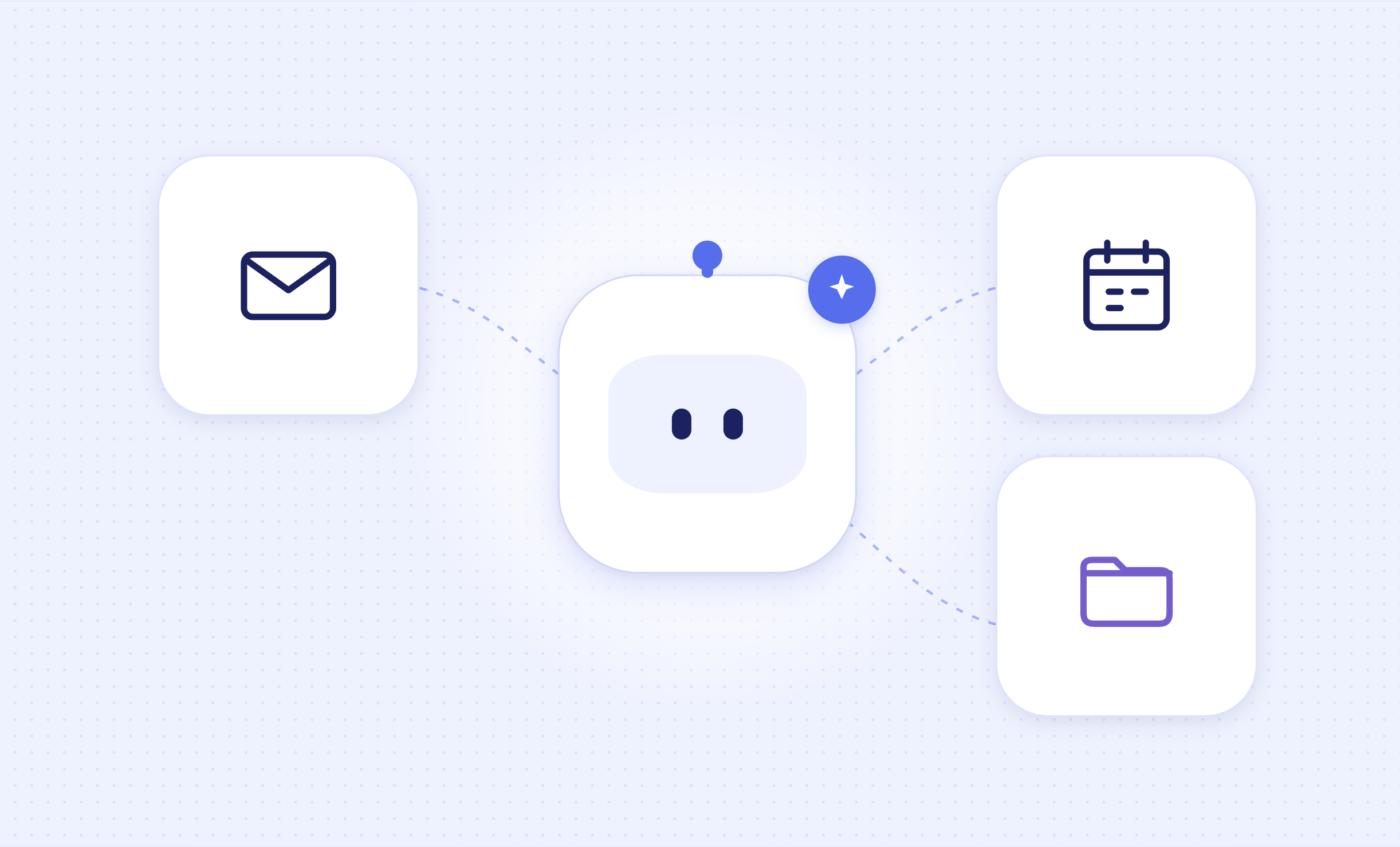
“Find the email about tomorrow’s meeting, check whether I’m free, and draft a reply.” A Telegram AI bot can do that without making you switch between three apps. But the chat window is only the starting point. For the task to work, the bot must connect to your email, calendar or file service, and the access you approve determines what it can do there.
Here’s how that connection usually works, using Gmail, Google Calendar and Google Drive as familiar examples. Other services follow a similar pattern, but the exact permissions and controls vary by provider and bot.
How does a Telegram bot connect to another app?
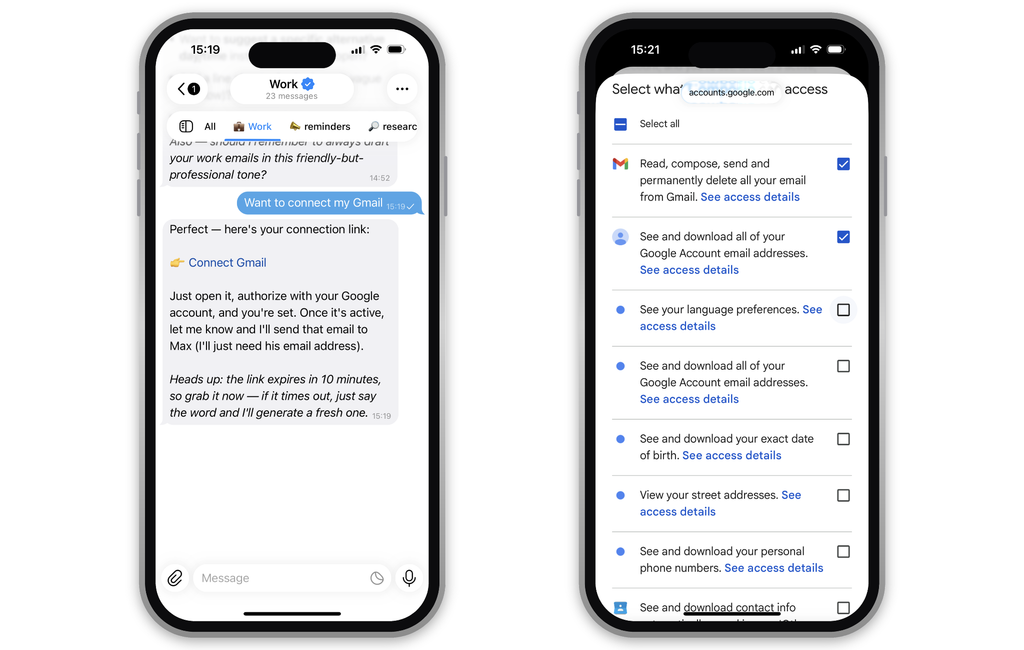
Typically, you tap Connect Google inside the bot or its linked website. You’re sent to Google to choose an account and review a list of requested permissions. If you approve, Google gives the bot’s service a way to access the parts of your account you authorized. You then return to Telegram and make requests in the chat. This kind of connection is often called OAuth.
That approval is separate from adding the bot to Telegram. The bot does not gain access to Gmail or Drive simply because you started a chat with it.
Google says a connected third-party app can access only the Google data and services you authorize, and you can review or remove that access. It may, however, ask for several permissions at once, so read the actual approval screen rather than relying on the bot’s description.
A bot should not need you to paste your Google password or a Telegram login code into its chat. Google specifically warns against giving a third-party app your account password.
What can Telegram AI bot do with email, calendar and files?
The useful question is not just “Can it connect?” It is what level of access the connection gives it.
| Connected tool | A limited task | A more powerful task to check carefully |
|---|---|---|
| Search messages or read an email so the bot can summarize it. | Send a reply, change labels or delete messages. | |
| Calendar | Check your schedule or find an event. | Create, change or delete events and invite other people. |
| Files | Find a document or read one you select for a summary. | Create, edit, move, share or delete files. |
“Read” and “manage” are meaningfully different. A bot that only needs to tell you when your next meeting starts has little reason to request broad control over your calendar. A writing assistant may reasonably need to create a draft, but sending it without a final review is a separate decision.
The permission screen shows what the connected service allows. The bot’s own design determines which of those actions it will perform and whether it asks you to confirm them. A feature advertised on a website is not proof that the bot has access to it; a broad permission request is not proof that it uses every action either. Check both.
Where does your information go?
Suppose you ask a bot to summarize an email. Your request goes through Telegram to the bot’s operator.
The bot retrieves the email from the connected service. It may then send some or all of that text to an AI model provider to produce the summary, before returning an answer in Telegram. Some bots use different arrangements, so their documentation and privacy policy matter.
Read-only access limits changes to your account; it does not mean the data stays inside that account. The bot still has to process what it reads. Whether it stores a copy, how long it keeps it, and whether another provider receives it are separate questions.
The same applies to calendar details and file contents, which may include information about other people as well as you.
This is why the consent screen is only half the privacy check. Look for a specific policy that names the data the bot collects, its AI providers if any, retention period, deletion process and whether your content is used for training.
If those answers are missing, avoid connecting an account that contains sensitive work or personal information.
Five checks before you connect
- Confirm you have the real bot: Open it from the developer’s official website or verified channel, and compare the username carefully. Our guide to fake or abandoned bots covers the warning signs.
- Read the permission list on the account provider’s screen: Match each request to a feature you actually plan to use. “Read calendar events” and “manage calendar events” are different levels of trust.
- Start with the narrowest access available: Connect only the services you need. If the bot offers a choice between reviewing a draft and sending an email automatically, start with review.
- Check where data is processed and kept: Find the bot’s privacy policy and look for clear answers about storage, outside AI providers and deletion.
- Test with something low stakes: Try a non-sensitive email, calendar event or file. See whether the bot explains what it found and asks before taking an action. If it is a work or school account, check your organization’s rules before connecting it.
These checks extend the same principle used in our Telegram bot permissions guide: access should match the job you want the bot to do.
How do you disconnect Telegram AI bot?
First, remove the integration inside the bot if it offers a disconnect option. Then review the linked apps in your Google Account or the equivalent settings for your email, calendar or file provider, and revoke access there too. Google provides a linked-apps page for this.
Revoking access stops the bot from continuing to use that connection. It does not necessarily delete information it already copied or processed. For that, use the bot provider’s deletion controls or contact its support team. If a bot gives you no clear way to disconnect or request deletion, consider that before connecting anything important.
FAQ
Can a Telegram AI bot read all my email?
Only if the connection you approve gives it that level of access. Some integrations can be limited to selected data or narrower actions; others request broad mailbox access. Read the exact consent screen for the bot you are using.
Can it send an email or change an event without asking me each time?
Potentially, if you grant the necessary permission and the bot is designed to act automatically. Check its settings for approval steps before allowing it to send, edit or delete anything.
Does disconnecting erase what the bot already saw?
Not automatically. Revoking the connection prevents future access, while deletion of previously collected data depends on the bot provider’s practices.
Connecting a bot to your tools can save real time. The sensible way to choose one is to look past “works with Gmail and Drive” and check the specific actions it can take, the data it processes and the control you retain. You can compare tools in our Personal Agents directory.